
The Google Docs Folder Problem
Every day, millions of writers, students, and professionals open docs.google.com or sheets.google.com expecting to find a traditional folder sidebar.
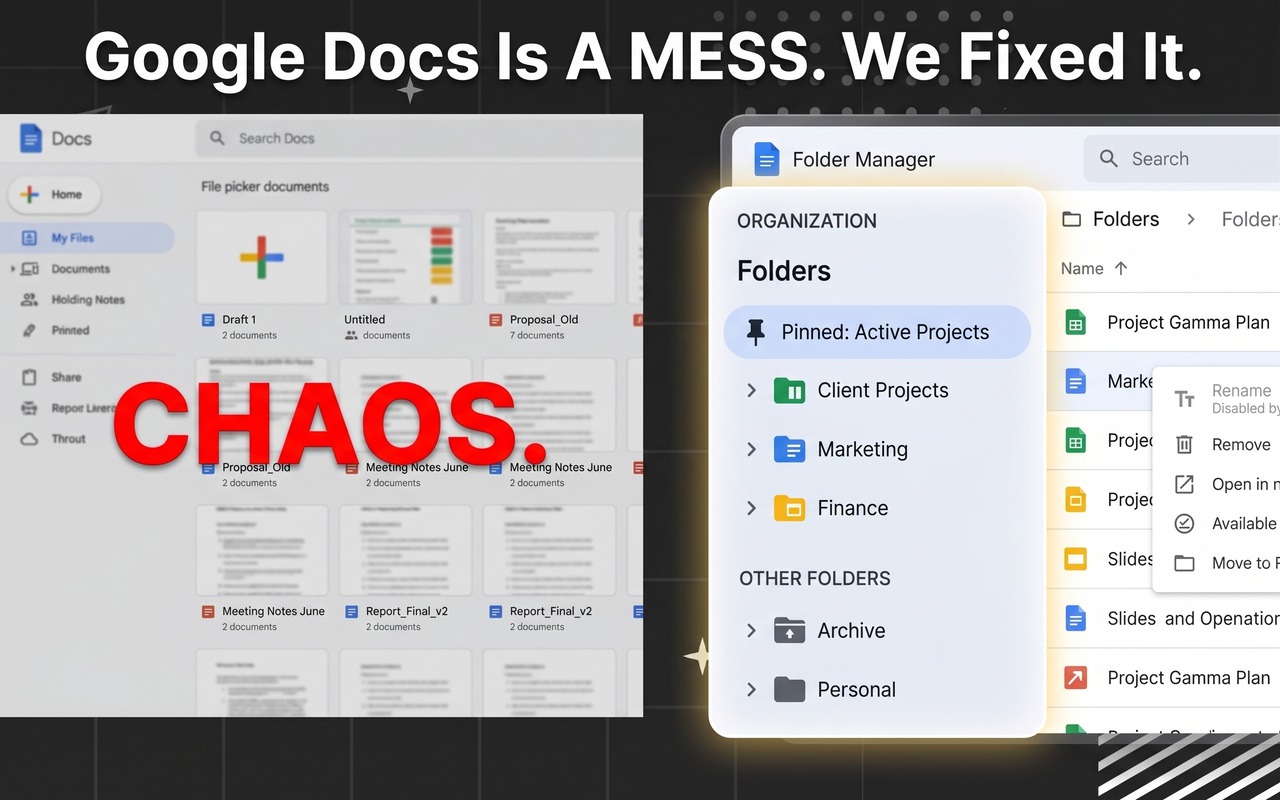
Instead, Google displays a flat list of Recent Documents sorted chronologically. The moment you open three different files to copy snippets or review old meeting notes, your entire dashboard reorganizes itself into chaos.
Google designed Google Docs, Sheets, and Slides strictly as document viewers. Google expects all folder hierarchies and tree navigation to be handled externally in Google Drive. This forces you to constantly switch tabs between Google Drive and your open documents.
Method 1: The Native Google Drive Workaround (Clunky)
The traditional way to organize Google Docs requires leaving Google Docs entirely:
- Open a new browser tab and navigate to drive.google.com.
- Click + New in the top left corner and select New Folder.
- Give your folder a name (e.g., "Q3 Strategy Reports") and click Create.
- Double-click the newly created folder, click + New again, and select Google Docs or Google Sheets.
- To move an existing document, drag it inside Google Drive into the destination folder.
The Downside: You have to maintain two open browser windows at all times. If you have 15 open tabs across multiple clients or subjects, finding which folder contains your active draft takes multiple clicks and search queries.
Method 2: Create In-App Folders & Subfolders with Folder Manager (Recommended)
With the free Folder Manager for Google Docs, Sheets & Slides extension, you get a dedicated folder sidebar directly inside your document editor and dashboard.
Step 1: Install the Free Chrome Extension
Install Folder Manager from the Chrome Web Store. It works on Google Chrome, Brave, Microsoft Edge, Opera, and all Chromium browsers.
Step 2: Open Google Docs or Sheets
Navigate to any Google Doc, Sheet, or Slide. A collapsible sidebar appears seamlessly on the right side of the window without obscuring your typing canvas.
Step 3: Click "+ New Folder"
At the top of the sidebar, click the + New Folder button. Enter your folder name and assign an optional color accent to distinguish between work, personal, and study projects.
Step 4: Create Multi-Tier Nested Subfolders
Need deeper organization? Right-click any folder or click the 3-dot menu to select + Add Subfolder. You can create unlimited levels of subfolders (e.g. Marketing > Campaigns > 2026 > Q3) complete with folder item counters.
Step 5: File Documents with 1-Click Toolbar Integration
Whenever you create a new document or spreadsheet, click the "Add to folder" button in your top toolbar or native Google menubar. Select your destination folder, and your file is instantly organized.

Add In-App Folders to Google Docs & Sheets
Stop wasting 20 minutes a day hunting for files in Google Drive. Organize Docs, Sheets, and Slides in a unified sidebar with active doc tracking and drag-and-drop.
How to Organize Google Sheets into Custom Folders
Managing financial models, lead sheets, and KPI trackers in Google Sheets is notoriously messy because spreadsheets often share identical names like "Budget 2026" or "Weekly Metrics".
Folder Manager automatically recognizes when you are in Google Sheets (displaying an emerald green badge and spreadsheet icon). You can group your Google Sheet together with its accompanying Google Doc briefing and Google Slide presentation in the exact same folder.
Key Features in Folder Manager
- 🟢 Active Document Indicator: Highlights the currently open file with a glowing green badge in the sidebar so you never lose your place.
- ↔️ Drag-to-Resize Sidebar: Adjust sidebar width between 200px and 800px with automatic editor margin reflow.
- 🔍 Instant Fuzzy Search: Type any keyword to search across folder names, subfolders, and documents with instant auto-expanded results.
- 🔒 100% Client-Side Privacy: Uses browser local storage. Your actual Google Drive files and permissions are never modified or compromised.
Summary
Creating folders in Google Docs and Sheets doesn't have to mean opening 10 different Google Drive tabs. By adding an in-editor sidebar, you keep all your documents, spreadsheets, and presentation decks organized right where you work.