
The Need for a Dedicated Google Docs Sidebar
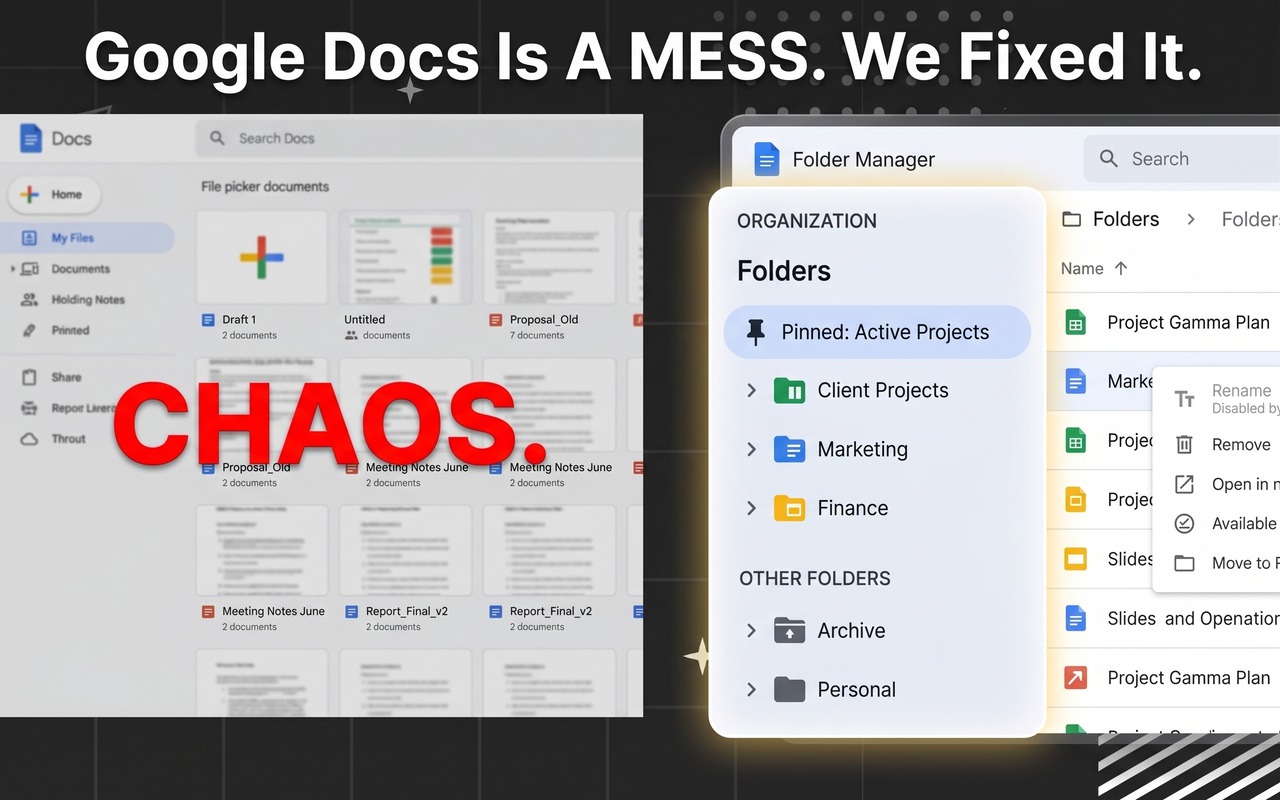
Google Docs is one of the world's most popular word processors, but its lack of an in-editor file explorer remains its biggest productivity hurdle. Because the native dashboard only shows a chronological recents stream, several Chrome extensions have emerged to fill the gap.
Two of the most frequently searched solutions are Folder Manager for Google Docs, Sheets & Slides and FolderXD. In this review, we break down how they stack up across real-world workflows.
Side-by-Side Feature Comparison Table
| Feature | Folder Manager | FolderXD | Legacy Sidebars |
|---|---|---|---|
| Supported Apps | ✅ Docs, Sheets & Slides | ✅ Docs, Sheets, Slides & Forms | ❌ Docs only |
| Active Document Tracking | ✅ Live Green Indicator & Auto-Expand | ❌ Manual tree browsing | ❌ No indicator |
| Native Toolbar "Add to folder" | ✅ 1-Click In-Editor Toolbar Button | ❌ Right-click context / sidebar | ❌ No toolbar button |
| Drag-to-Resize Sidebar | ✅ Smooth Drag (200px - 800px) with Reflow | ⚠️ Basic width toggle | ❌ Fixed overlay |
| Multi-Google Account Isolation | ✅ Automatic Account Separation | ⚠️ Manual profile separation | ❌ Account mixup |
| Privacy & Local Storage | ✅ 100% Local (Optional Google Drive Sync) | ✅ Local by default (Optional Cloud Sync) | ⚠️ Heavy permissions |
| Cross-Browser Support | ✅ Chrome, Edge, Brave & Firefox | ✅ Chrome & Chromium | ❌ Chrome only |
1. Active Document Tracking: Always Know Where You Are
When working with multiple browser tabs, one of the most frustrating challenges is opening a document and wondering: "Which project folder does this file belong to?"
Folder Manager features built-in Active Document Tracking. Whenever you switch between tabs or open any Google Doc, Sheet, or Slide, the sidebar immediately highlights your active file with a glowing green indicator and an Open badge. Even better, it automatically unfolds parent folder branches so you can see the complete hierarchical path at a glance.
With FolderXD, folders and links are categorized nicely, but you have to manually search or browse through folders to locate the currently open document in your tree.
2. Native Toolbar Integration: 1-Click "Add to Folder" While Typing
Filing documents should never interrupt your writing flow. Folder Manager embeds an intuitive "Add to folder" action directly into the Google Docs, Sheets, and Slides menubar and in-editor toolbar.
Whenever you create a new document or open an unfiled draft, you can file it into any nested subfolder with a single click right from the top toolbar, without needing to open secondary popup windows or navigate away from your canvas.
3. Smooth Resizability (200px – 800px) & Editor Margin Reflow
A common issue with workspace overlays is that sidebars can sometimes cover document margins or toolbar buttons on smaller laptop screens.
Folder Manager includes a fluid drag-to-resize handle (200px to 800px) with automatic editor layout reflow. When you expand or resize the sidebar, the Google Docs and Google Sheets canvas automatically adjusts its layout margin so your text remains perfectly centered and visible.
Experience the Smarter Google Workspace Folder Sidebar
Get active document tracking, in-editor toolbar filing, nested subfolders, and fluid resizing across Google Docs, Sheets, and Slides.
4. Privacy & Cloud Sync Architecture
Both Folder Manager and FolderXD share a commendable focus on privacy by storing your folder hierarchy locally in your browser storage by default. This ensures zero data harvesting and instant offline speed.
For cloud synchronization, Folder Manager connects directly with Google's secure private Google Drive application storage. This means your sync data stays securely within your own Google account rather than being routed through third-party servers.
The Verdict
Both tools provide strong folder management capabilities for Google Workspace, but Folder Manager for Google Docs, Sheets & Slides stands out with key workflow refinements:
- Active Document Indicators: Instant visual awareness of where your open file lives.
- Native In-Editor Toolbar Button: 1-click filing without leaving your typing flow.
- Multi-Account Isolation: Automatic separation between work and personal Google accounts.
- Fluid Layout Reflow: Resizable 200px–800px sidebar that never covers your typing canvas.