
The Workspace Search Crisis
The average knowledge worker spends nearly 20% of their work week searching for internal information, according to McKinsey research. In Google Workspace, search inefficiency is compounded by two major issues:
- Overwhelming Drive Search Results: Typing a common term like "Pricing" returns hundreds of unrelated spreadsheets, meeting notes, PDFs, and trash items.
- Lack of In-Editor Navigation: Inside Google Docs, Sheets, or Slides, there is no quick-switcher to jump between related project files without opening a new tab.
1. Instant In-Editor Fuzzy Search with Folder Manager
While Google Drive relies on heavy cloud database queries that take seconds to load, Folder Manager utilizes sub-millisecond client-side fuzzy search right in your editor sidebar.
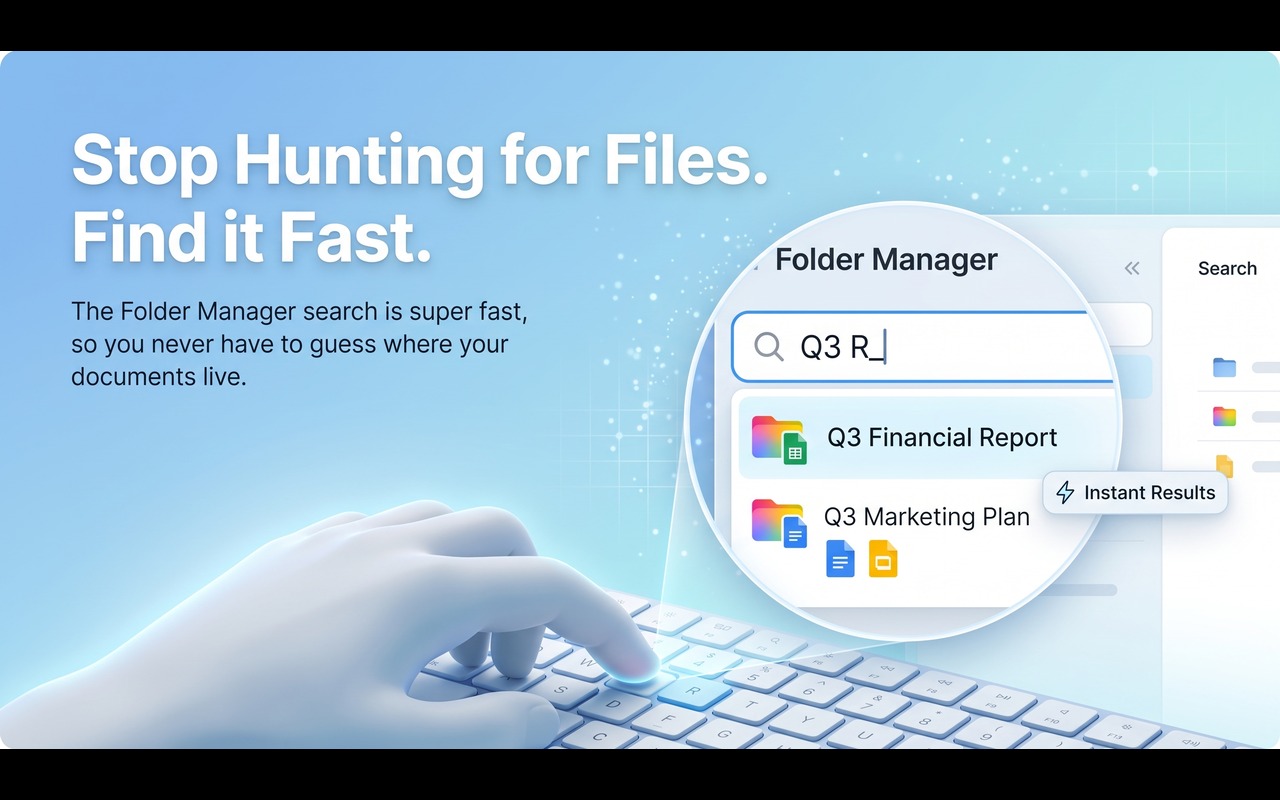
How it works:
- Open the Folder Manager sidebar in Google Docs, Sheets, or Slides.
- Type 2–3 letters of any keyword (e.g., "q3" or "strat").
- All matching folders and files across Docs, Sheets, and Slides are filtered instantly.
- Parent folder branches unfold automatically, showing you the exact context of where each document lives.
2. Combining AI Assistants with Google Docs
Beyond navigation, AI research assistants can synthesize and query your document knowledge base in seconds:
Google NotebookLM
Google's NotebookLM allows you to upload up to 50 Google Docs into a dedicated AI notebook. You can ask complex questions like "What were the three key objections in our Q2 client interviews?" and receive cited answers drawn directly from your notes.
Perplexity & Claude for Deep Research
Using AI assistants alongside your writing workflow lets you draft outlines, verify citations, and brainstorm copy without opening dozens of research tabs.
Stop Hunting for Google Docs & Sheets
Find any document in milliseconds with instant fuzzy search, nested subfolders, and active file badges directly inside Google Workspace.
3. Best Practices for Faster Workspace Search
To make your documents even easier to find, follow these naming and taxonomy rules:
- Use ISO Date Prefixes: Name files starting with
YYYY-MM-DD(e.g.2026-08-21_Q3_Roadmap) so chronological sorting works naturally. - Group by Project, Not Format: Keep the Google Doc PRD, the Google Sheet financial model, and the Google Slide deck inside the same project folder rather than splitting them by app type.
- Pin Your Top 3 Active Binders: In Folder Manager, click the Pin icon on your current sprint folders so they remain anchored at the very top of your workspace.
Conclusion
The future of workplace productivity combines AI-driven semantic comprehension with fast, tactile local navigation. By installing an in-editor folder sidebar and pairing it with AI copilots, you can eliminate search friction and focus entirely on creating great work.